















How to Fix Windows Explorer Not Responding — symptoms such as a frozen screen, missing taskbar, unresponsive toolbars, or folders that won’t open are classic issues Windows users encounter, whether on older releases or the latest versions like Windows 10 and Windows 11. In today’s digital age, where a computer is essential for work, study, and entertainment, even small technical problems can significantly disrupt productivity and workflows.
The explorer.exe process acts as the core of the user interface on the desktop — handling icons, the Start menu, and file management. When this process stutters, crashes, or shows "Not Responding," many users panic and perform a hard reset by holding the power button. In reality, doing so can harm the hard drive and risk data loss or file corruption. This article collects correct, safe, and practical techniques based on computer best practices so you can address the issue professionally and return your PC to full functionality without needing a technician. 📍
Main causes and step-by-step fixes when Windows Explorer freezes 🛠️
Windows Explorer problems rarely appear without cause. They often stem from faulty processing, conflicts between programs, or memory (RAM) exhaustion. When the system can’t allocate resources properly, freezes occur. Below are troubleshooting steps ordered from the simplest to more advanced operating-system level solutions.

1. Restart Windows Explorer via Task Manager — this is the best first-aid method; it’s effective and safe for your data.
- Press the keyboard shortcut
Ctrl + Shift + Escto open Task Manager directly (or pressCtrl + Alt + Deleteand choose Task Manager). - In the window, look for the tab named Processes.
- Scroll to find the process named Windows Explorer (look for the yellow folder icon).
- Right-click that entry and select Restart.
- Your screen will go dark briefly and the taskbar will disappear; don’t be alarmed — the system is reloading the graphical shell. When it returns, the freeze usually resolves immediately.
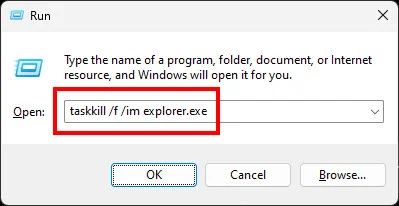
2. Use Command Prompt (CMD) to force-stop and restart — if Task Manager is also unresponsive, commands via Command Prompt are an effective alternative.
- Press
Windows + Rto open the Run dialog. - Type
cmdand press Enter. - In the black window, type
taskkill /f /im explorer.exeand press Enter (this forcibly ends the Explorer process). - Then type start explorer.exe and press Enter (this restores the desktop and taskbar).
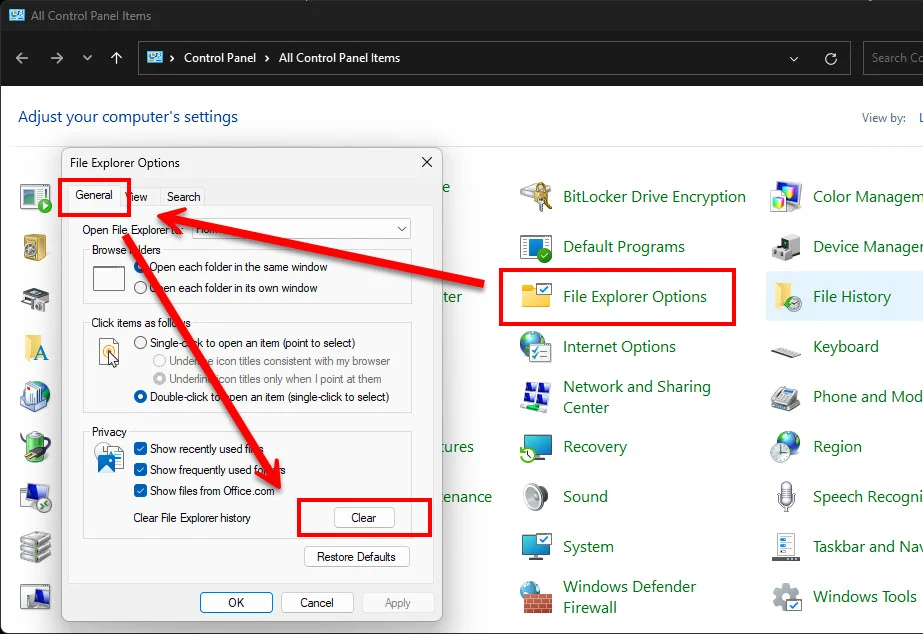
3. Clear File Explorer history — if Explorer freezes when opening specific folders, accumulated cache may be the cause.
- Open Control Panel or search for File Explorer Options in the Windows search box.
- In the General tab, locate the Privacy section.
- Click the Clear button next to Clear File Explorer history.
- This removes search history and temporary file entries that may cause delays, helping Explorer open windows faster.
Additional measures to prevent recurrence 🔧
If the basic steps above don’t stop Windows Explorer not responding from recurring, it may be time to perform official system file repairs.
- Scan and repair system files (SFC Scan): Windows system files can become corrupted by incomplete installations or malware. Running the System File Checker helps scan and repair these files. Open Command Prompt as administrator and run
sfc /scannow, then wait until it completes 100%. - Update the OS and drivers: Incomplete Windows updates or outdated display drivers are common causes of UI freezes. Regularly check Windows Update for the latest fixes and driver updates.
💬 Frequently Asked Questions (FAQs) about Windows Explorer issues
Q: Will restarting Windows Explorer cause open files to be lost? A: No. Restarting this process affects only the visual shell (interface) — menus, taskbar, and folders. Other applications such as Microsoft Word, browsers, or games running in the background will not be closed, and your data remains safe.
Q: Why does this still happen on new computers? A: It’s not just hardware age. Conflicts with third-party software — for example certain antivirus programs or desktop customization tools — can interfere with the operating system and cause Explorer instability.
Q: Can I use the same methods on Windows 11? A: Yes. Windows 11’s core structure is similar to Windows 10. Using Task Manager to restart Windows Explorer remains a standard and effective solution.
📌 Summary: Fixing Windows Explorer Not Responding
In summary, fixing Windows Explorer not responding is straightforward and doesn’t require programming skills. When Windows Explorer freezes, stay calm and avoid using the power button. Start by opening Task Manager and restarting Windows Explorer. If that fails, try the Command Prompt methods. Regular system maintenance — clearing cache, updating Windows, and running SFC scans — forms a strong preventive layer that reduces chances of future system freezes, keeping your device smooth and reliable.
If these steps restored your PC’s smooth operation, consider sharing this article with friends who might be dealing with the same issue. If you have further questions or tips, comment below to exchange experiences — our team updates helpful tricks daily, so follow us to stay current with IT tips! 🚀✨
---------------------------------------------
If your screen is still blank and the taskbar is gone, try restoring Windows Explorer using one of the methods below, listed from easiest and most reliable:
Method 1: Restore via Task Manager (recommended)
This is the most stable method to bring the system back.
- Press Ctrl + Shift + Esc together to open the Task Manager.
- When the window appears, click the File menu at the top-left.
- Choose Run new task.
- A small dialog will appear; type
explorer.exein the box. - (Optional) Check Create this task with administrative privileges if available.
- Click OK or press Enter.
After a moment, the desktop and taskbar should reload normally.
Method 2: Restore via Run dialog
If you cannot open Task Manager, try this:
- Press Windows + R on the keyboard (Windows logo key + R).
- The Run dialog will appear in the lower-left corner.
- Type
explorer.exe. - Click OK or press Enter.
Method 3: Use a simple command in Command Prompt (CMD)
If you already have a CMD window open, try typing the command without using the word start.
- In the CMD window, type only
explorer.exe(or justexplorer). - Press Enter — sometimes omitting start forces the executable to launch directly.
🚨 If none of the methods work
If the system is so unresponsive that no commands register, you may need to restart the PC. To protect your data, restart using the proper procedures below:
- Restart via keyboard: Press Ctrl + Alt + Delete together. The screen will change to a system menu; click the Power icon (power button) at the bottom-right and choose Restart.
- Restart via CMD: If you can still type in a command window, run
shutdown /r /t 0and press Enter (the system will restart immediately).
For further system configuration guides or the latest computer tips, visit the category [ Windows 11 Tutorials ] 🖥️