


















How to Fix Windows Defender Not Working is important knowledge for users of Windows 10 and Windows 11 to handle cybersecurity risks 🛡️. Windows Defender (now called Windows Security) is the first line of defense included with the operating system, providing real-time detection of malware, viruses, and various threats. However, many users encounter issues such as the app failing to open, a blank screen, or notifications stating protection is turned off by an administrator. This article explains the root causes and provides systematic, safe troubleshooting steps. 💻
Causes and steps to fix when security features fail
The built-in antivirus may stop working for many reasons: installing a third-party antivirus that interferes with operation, corrupted Windows system files, or Registry anomalies ⚙️. To restore full functionality, you can follow these diagnostic and repair steps below.
1. Check for and uninstall other antivirus programs (Third-Party Antivirus) Normally, when you install antivirus software from other vendors such as Avast, McAfee, or Kaspersky, Windows will automatically disable Windows Defender's real-time protection to avoid duplicate scanning and resource conflicts. If you want to revert to Windows Defender, you need to fully uninstall those programs first via Control Panel > Programs and Features, then restart your computer once.
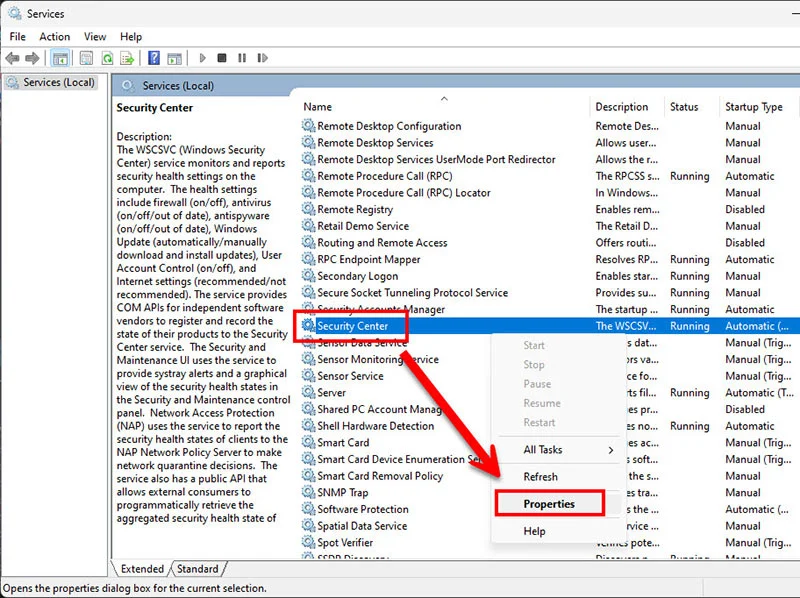
2. Enable services via the Services window Sometimes the background services that support the antivirus may be temporarily stopped. You can check and restart them as follows:
- Press
Windows + R, typeservices.msc, and press Enter - Find the service named Security Center
- Right-click and choose Properties
- In the Startup type field set it to Automatic
- If the Start button is available, click it, then press Apply and OK
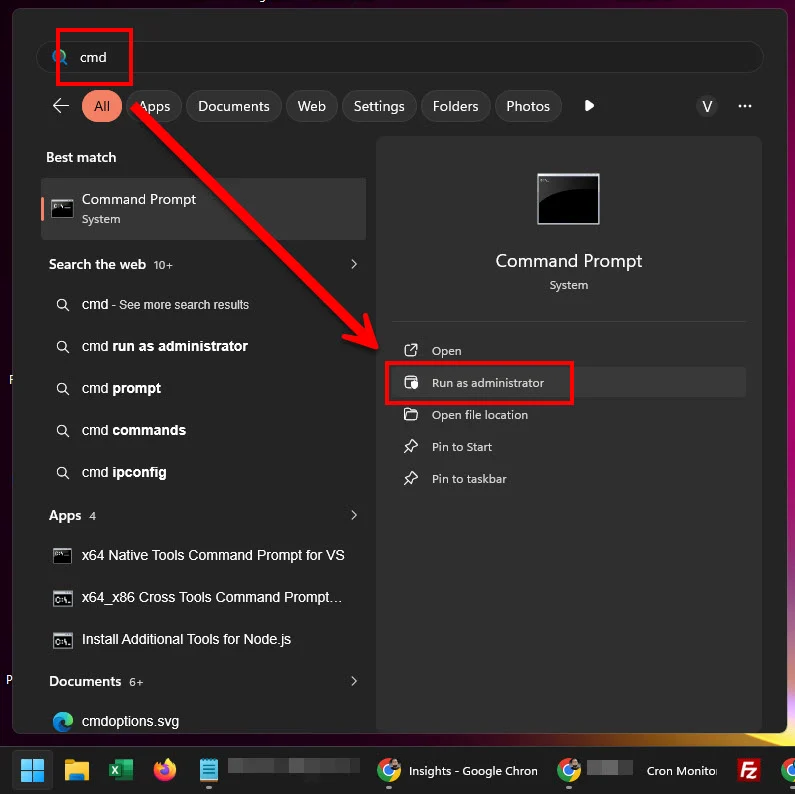
3. Repair corrupted system files with SFC Scan If files required for the security system are missing or corrupted, the System File Checker tool can help recover them:
- Type
cmdin the Windows search box - Right-click Command Prompt and select Run as administrator
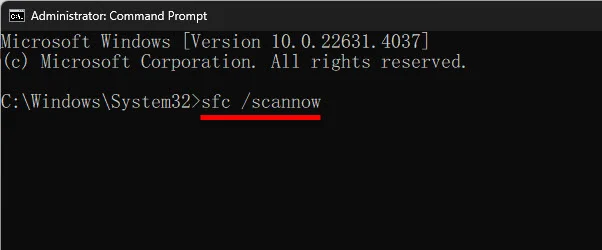
- Type the command
sfc /scannowand press Enter - Wait until the scan and repairs reach 100%, then restart your computer
Additional recommendations to prevent future failures
To keep the operating system and security software stable, regularly check for operating system updates or Windows Update 🔄. Microsoft regularly releases bug fixes and Security Intelligence Updates. Also avoid downloading pirated software or untrusted optimizer tools, as these often modify the Registry and can cause Windows' built-in antivirus to stop working.
Frequently Asked Questions (FAQs) about Windows security
Q: If I install another antivirus and Windows Defender turns off, is that normal? A: Yes. The operating system is designed to disable its own real-time protection when it detects a third-party antivirus to prevent both programs from scanning the same files, which could slow or destabilize the computer.
Q: If the system says "Managed by your organization" on a personal computer, how can I fix it? A: This usually results from incorrect Group Policy or Registry settings (sometimes caused by malware trying to disable protection). You can attempt to remove the specific Registry entries at HKEY_LOCAL_MACHINE\SOFTWARE\Policies\Microsoft\Windows Defender, but always back up the Registry first for safety.
Q: Will resetting Windows help resolve this? A: Using Reset this PC is a last-resort method that can resolve most corrupted system files and faulty software. However, keep it as a final option after trying the steps above, and always back up important data before proceeding.
Conclusion: Restoring the effectiveness of Windows' antivirus
In summary, how to fix Windows Defender not working starts with checking for conflicting third-party software, reactivating services via the Services tool, and repairing system files manually 🛠️. Maintaining your security tools to run continuously is essential for protecting your personal data from modern digital threats. We hope these procedural and technical steps help you restore antivirus functionality and use your computer with peace of mind.
📢 After reading this guide on fixing Windows Defender not working, were you able to restore your system security? 💬 If you found this article helpful, please share it with friends — and if you have further questions, leave a comment below for our team! 👇
If you still have questions or face other issues, you can return to the category [ Windows 11 Tutorials ] to find more fixes, updates, and tips to help your computer run more smoothly. 🖥️✨