

















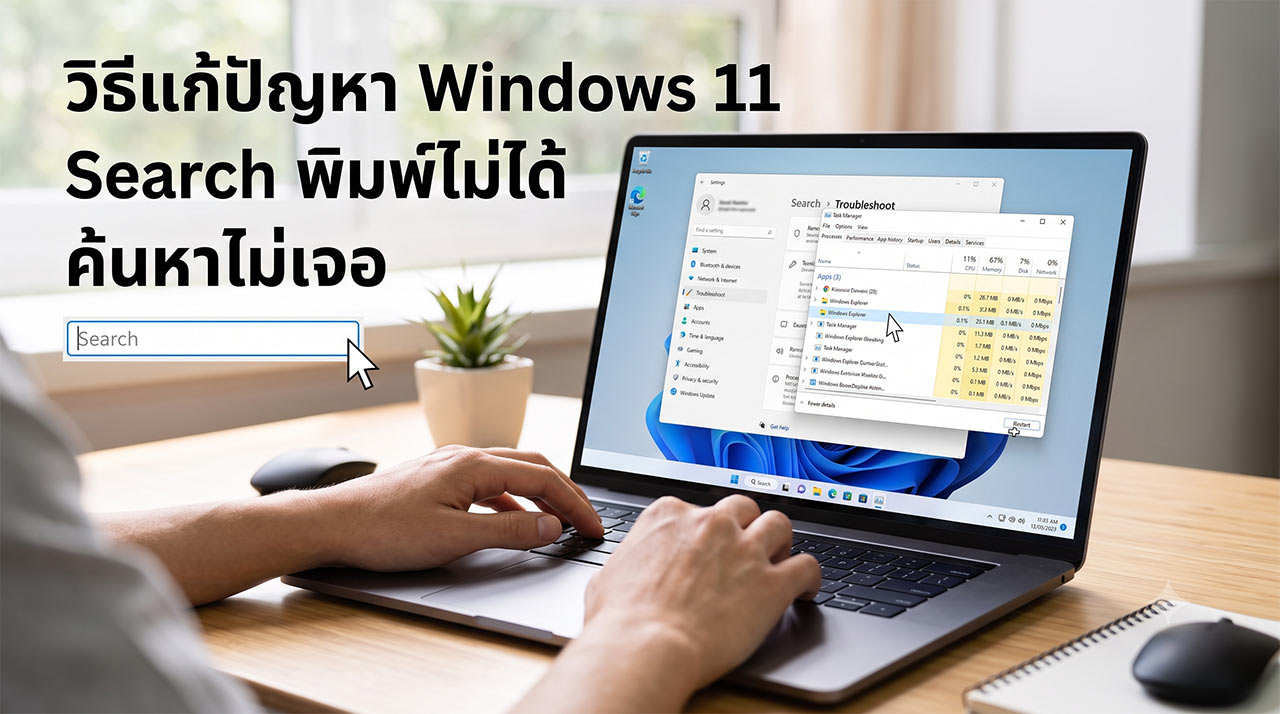
How to fix Windows 11 Search not working, unable to type, or not showing results is a topic of great interest to users of Microsoft's latest operating system. The search bar or Search Box on the Taskbar is an essential tool that provides quick access to applications, documents, and various settings. When an error occurs that prevents typing or fails to display any search results, it inevitably disrupts workflow continuity. This article compiles in-depth information and technical troubleshooting steps to help users restore their search system to full efficiency.
Causes of Windows 11 Search Malfunctions 💻
The issue of Windows 11 search not working or the search box freezing is rarely caused by hardware damage. Instead, it usually stems from glitches in the operating system's background processes. Common primary causes include malfunctions in Windows Explorer or SearchHost.exe, which are key processes controlling the User Interface (UI). Additionally, the issue can be caused by a corrupted Search Indexing database, preventing the system from retrieving file data in time, or even missing or corrupted system files due to an incomplete Windows update. Analyzing these causes will help you choose the most accurate solution.
Step-by-Step Guide to Basic Troubleshooting 🛠️
Users can troubleshoot these issues themselves using the built-in tools in Windows 11, ordered from the simplest method with the least system impact:

1. Restart Windows Explorer Often, a frozen search box can be resolved by restarting the system UI.
- Press the shortcut
Ctrl + Shift + Escon your keyboard to open Task Manager. - In the Processes tab, scroll down to find Windows Explorer.
- Right-click on it and select Restart (your screen may flicker briefly, which is normal). Then, try using the search box again.

2. Use the Windows Search Troubleshooter Microsoft has designed an automated troubleshooting tool specifically to address this issue.
- Open Settings by pressing
Windows + I. - Go to System > Troubleshoot > Other troubleshooters.
- Scroll down to find Search and Indexing, then click Run.
- Follow the on-screen instructions, selecting the issues you are experiencing, such as "Can't start a search or see results". The system will automatically diagnose and repair the search process.

3. Rebuild the Search Index If you can type but the system cannot find files, the Indexing service might be corrupted.
- Press
Windows + Rto open the Run dialog box. - Type
control /name Microsoft.IndexingOptionsand press Enter. - In the Indexing Options window, click the Advanced button.
- Under the Troubleshooting section, click Rebuild and confirm (this process may take some time depending on the amount of data on your computer).

4. Restart the Windows Search Service If the core service managing the search system stops running, it must be restarted.
- Open the Run dialog box (
Windows + R), typeservices.msc, and press Enter. - Scroll down to find the service named Windows Search.
- Right-click on it. If the status is Stopped, select Start. If it is already running, select Restart.
- It is recommended to double-click it and set the Startup type to Automatic so that the service starts every time you boot up.

5. Scan and Repair System Files (SFC /Scannow) If system files related to search are corrupted, running a deep system scan is the appropriate solution.
- Right-click the Start button (or press
Windows + X) and select Terminal (Admin). - Type the command
sfc /scannowand press Enter. - Wait for the system to scan and repair corrupted files to 100%, then restart your computer.
Frequently Asked Questions (FAQs) about Windows 11 Search 💬
Q: Why does the Search Box suddenly become completely unresponsive? A: This symptom is usually caused by the SearchHost.exe or Windows Explorer process freezing temporarily (Not Responding). It can be due to high RAM usage or bugs from minor update patches. Restarting Windows Explorer usually resolves this issue immediately.
Q: Will rebuilding the search index delete my files? A: Not at all. Rebuilding the index simply recreates the computer's "table of contents" so Windows knows exactly where files are stored. Your personal data and documents will remain completely intact.
Q: Does updating Windows to the latest version really help fix this issue? A: Yes, in many cases. If the issue is caused by a bug in a previous version of the operating system, going to Windows Update and downloading the latest cumulative update is often the most direct, Microsoft-approved solution.
Summary of Windows 11 Search Troubleshooting and Prevention Tips 📌
In summary, understanding and applying how to fix Windows 11 Search when you cannot type is a fundamental computer troubleshooting skill that digital users should know. The issues are typically linked to operating system glitches, search services, or an incomplete search index. Following steps such as restarting Windows Explorer, running the Troubleshooter, rebuilding the index, and executing system file repair commands are all globally recognized solutions. To prevent long-term issues, users should regularly check for Windows 11 updates and avoid using untrustworthy system optimizers, which might delete or block registry entries crucial to the Windows search system.
If you have tried these solutions to fix Windows 11 Search not typing and your system is back to normal, don't forget to share this article to help others who might be facing the same issue! If you have any further questions about computer usage, feel free to leave a comment and follow our website daily for new IT tips and tricks! 🚀
In addition to fixing the search box typing issue, we have many more great tips! You can head back to the [ Microsoft Windows 11 ] category to follow IT news and easy-to-understand DIY computer troubleshooting guides. 🛠️