













How to restart Windows Server 2019 is one of the critical processes that system administrators must perform correctly and with the utmost care. This is because server-level operating systems function differently from standard desktop operating systems (Desktop OS). Servers typically serve as the hub for processing, data storage, and hosting applications for an organization. Therefore, restarting or rebooting the system arbitrarily or incorrectly can directly impact business continuity and potentially lead to the loss of active data. In this article, we will delve into the official steps and methods for restarting a server, along with various tools to ensure maximum safety for IT professionals. 🛡️

Details and Steps for Restarting the Server Operating System ⚙️
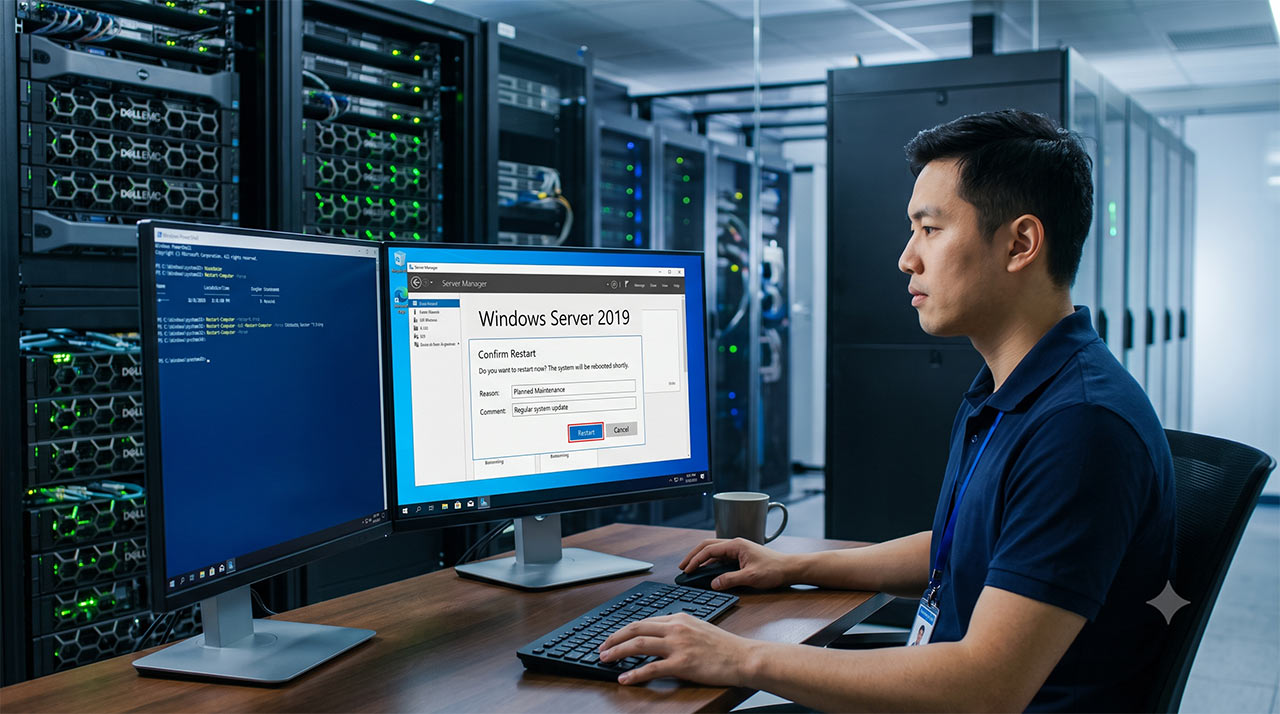
Performing a restart on Windows Server 2019 is designed to always require users to specify a reason for the action through a feature called Shutdown Event Tracker. This logging system allows administrators to trace back why the server was shut down or rebooted, such as system updates, new software installations, or hardware issues. The most popular basic method is using the Graphical User Interface (GUI), which involves the following clear steps:
- Accessing the Power Menu: The administrator must log in with Administrator Privileges, click the Start Menu button in the bottom-left corner of the screen, and select the Power icon.
- Selecting the Restart Command: Upon clicking Restart, the system will not reboot immediately; instead, the Shutdown Event Tracker window will appear.
- Specifying the Reason (Reason for Restart): The user must select the reason that best matches the purpose of the restart, such as Hardware: Maintenance (Planned), Operating System: Recovery (Planned), or Application: Installation (Planned).
- Confirming the Command: After specifying the reason and entering any additional comments, click the Continue button to allow the system to complete the restart process.
This method is the standard recommended by Microsoft for managing servers under normal conditions, as it allows for efficient tracking and auditing of the server's operational history. 📊

Using Command Prompt and PowerShell for Advanced Commands 💻
In addition to using the GUI, in many cases, administrators may need to rely on command-line commands for speed or automation scripting. Windows Server 2019 supports operations through both Command Prompt and PowerShell as follows:
1. Using Command Prompt (CMD): Users can open Command Prompt in "Run as administrator" mode and type the following command to execute: shutdown /r /t 0
/rrepresents the command to restart./t 0specifies the time delay before shutdown, set to 0 seconds for immediate execution. If you wish to specify a reason and log it in the Event Viewer, you can also add the/d(Reason Code) and/c(Comment) parameters to the command.
2. Using PowerShell: PowerShell is a highly powerful tool for modern server management. The command used is: Restart-Computer -Force. This command triggers an immediate system restart. Using the -Force parameter forces all running applications to close. Additionally, PowerShell excels at easily performing remote restarts using the command: Restart-Computer -ComputerName "ServerName" -Force, which is extremely beneficial for organizations with multiple servers deployed in a data center. 🌐
Precautions and Potential Impacts Before Restarting ⚠️
Before executing the process to restart Windows Server 2019 each time, administrators must be aware of the impact on users and the network. Here are the best practices to follow before initiating a system reboot:
- Check Active Sessions: You must check if other users are currently connected or retrieving data from the server by checking Task Manager or using the command
query user - User Notification: If the restart affects core services, a prior notification should be broadcast to users within the organization to prevent any loss of active work data.
- Data Backup: Although restarting is a routine process, keeping an up-to-date system backup (System State Backup) is an indispensable risk mitigation measure.
- Check Update Status: If the server is installing Windows Updates, let the process complete fully. Never cut the power or force a shutdown mid-process, as this can corrupt the operating system and prevent it from booting.
Frequently Asked Questions (FAQs) About Server Restarts 💬
Q1: Why does Windows Server 2019 force users to specify a reason before restarting? A: The Shutdown Event Tracker feature is designed for security and enterprise standards. It allows IT auditors and administrators to review the System Event Log to determine the cause of any server downtime, assisting in long-term system analysis and troubleshooting.
Q2: If a restart command is entered by mistake, can it be canceled? A: Yes, it can. If you have set a timer, such as shutdown /r /t 60 (restart in 60 seconds), you can cancel it by typing the command shutdown /a (Abort) in Command Prompt before the timer expires. The system will immediately abort the shutdown command.
Q3: Does rebooting Windows Server frequently damage the hardware? A: Generally, restarting through the operating system using the correct method does not directly damage the hardware. However, rebooting more often than necessary causes downtime, which impacts organizational services. A well-managed server should maintain high uptime and only be restarted during designated maintenance windows.
Summary: Efficient Ways to Restart Windows Server 2019 📌
In summary, how to restart Windows Server 2019 can be achieved through various methods, whether via the GUI with the Shutdown Event Tracker reason-logging system, or using command lines in Command Prompt and PowerShell for administrators seeking speed and remote management. The most crucial aspect is not just initiating the restart, but the diligence in checking the system, notifying users, and choosing the correct commands to ensure the organization's server remains stable, operates continuously, and minimizes business impact. 🇹🇭
If you found this article on "How to Safely and Correctly Restart Windows Server 2019" helpful and informative for managing server systems, don't forget to share it with your IT peers and System Admin team! You can also follow our website regularly for more news, in-depth computer techniques, and great IT tips. 🚀